

The best ways to upgrade your conference room address the problems people encounter in real meetings: connecting, hearing each other, seeing participants, and sharing readable content. Start with installation and cabling if the room has recurring faults. Improve microphone and camera coverage when remote attendees struggle, and simplify meeting controls when setup is the main obstacle.
These seven upgrades are planning options, not a fixed ranking. Choose the order around your room’s condition and meeting needs. Each section explains what to assess, what to specify, and what affects the cost.
1. Professional installation and commissioning
Professional installation and commissioning help confirm that the room works as a complete system. Assess existing faults before replacing otherwise suitable equipment.
What it fixes
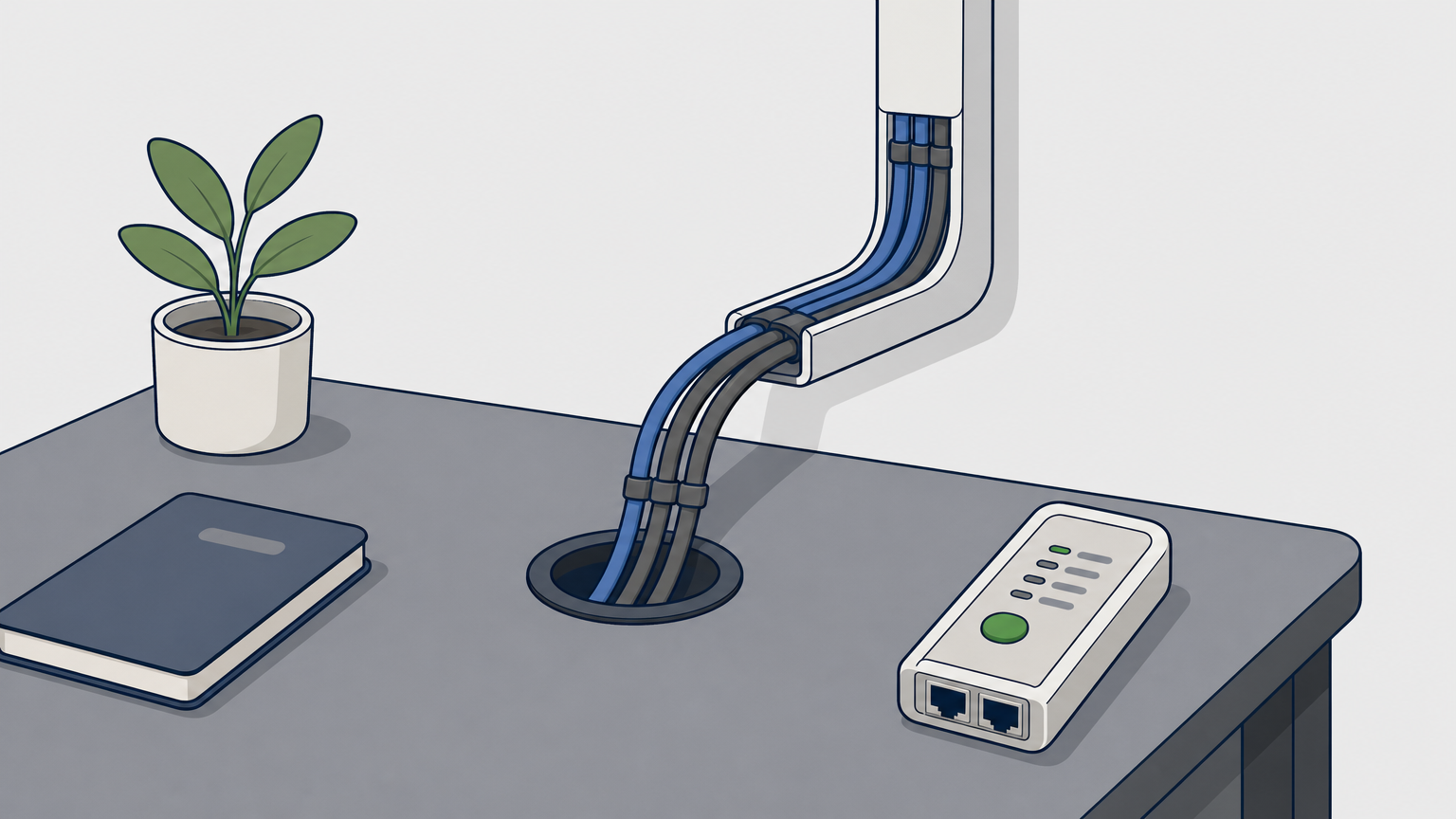
Recurring problems can come from loose or unsuitable cables, incorrect audio settings, poor camera placement, or missing documentation. Commissioning means configuring and testing the installed system against agreed requirements, including the experience of people joining remotely.
Equipment sets the ceiling for a room, but installation and commissioning decide whether you ever reach it.
What to specify
Write these items into the scope of work before you buy hardware, so the room is proven with a live call rather than a quick signal check:
- Network ports, bandwidth, and PoE capacity where required by the approved system design; some peripherals connect by USB or through the room system
- Power and data where equipment and users need them, with protected cable routes
- Spare conduit or cable pathways for the next upgrade
- Audio tuning, camera presets, and display settings tested on a real video call
- Written documentation and a short training session for the people who use the room
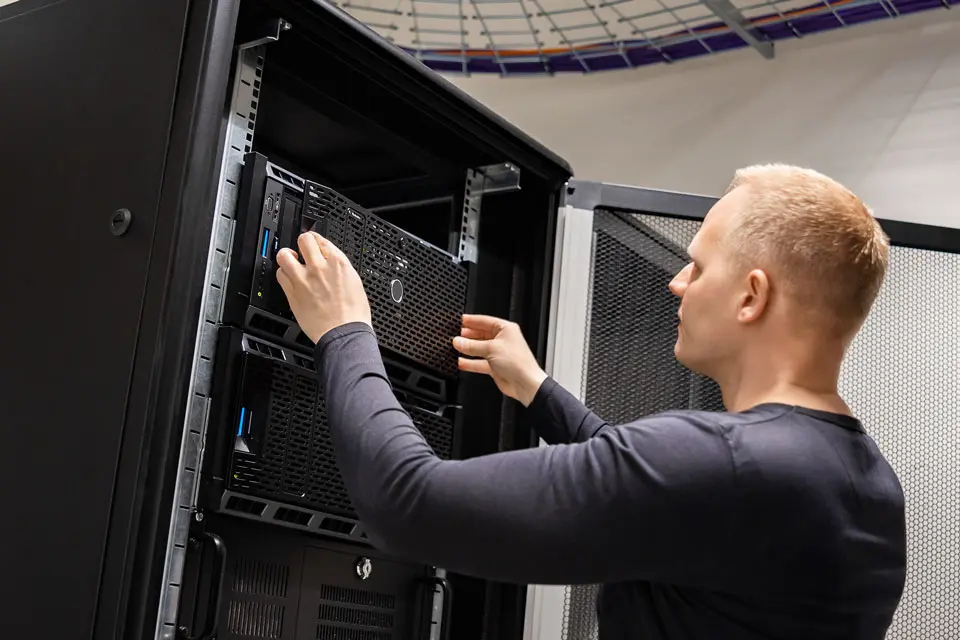
- Technicians with experience on the specified equipment and relevant AV or manufacturer credentials
Who it suits and what it costs
This is useful before a major equipment purchase or when earlier upgrades left unresolved problems. Discuss the required video teleconferencing installation and support with MegaServices, and define responsibility for cabling, configuration, testing, documentation, and user training.
Request a scoped quote covering labor, materials, site access, commissioning, and any follow-up support. If ongoing maintenance is needed, review the scope and terms of an AV service contract separately.
2. A video bar or camera with auto-framing
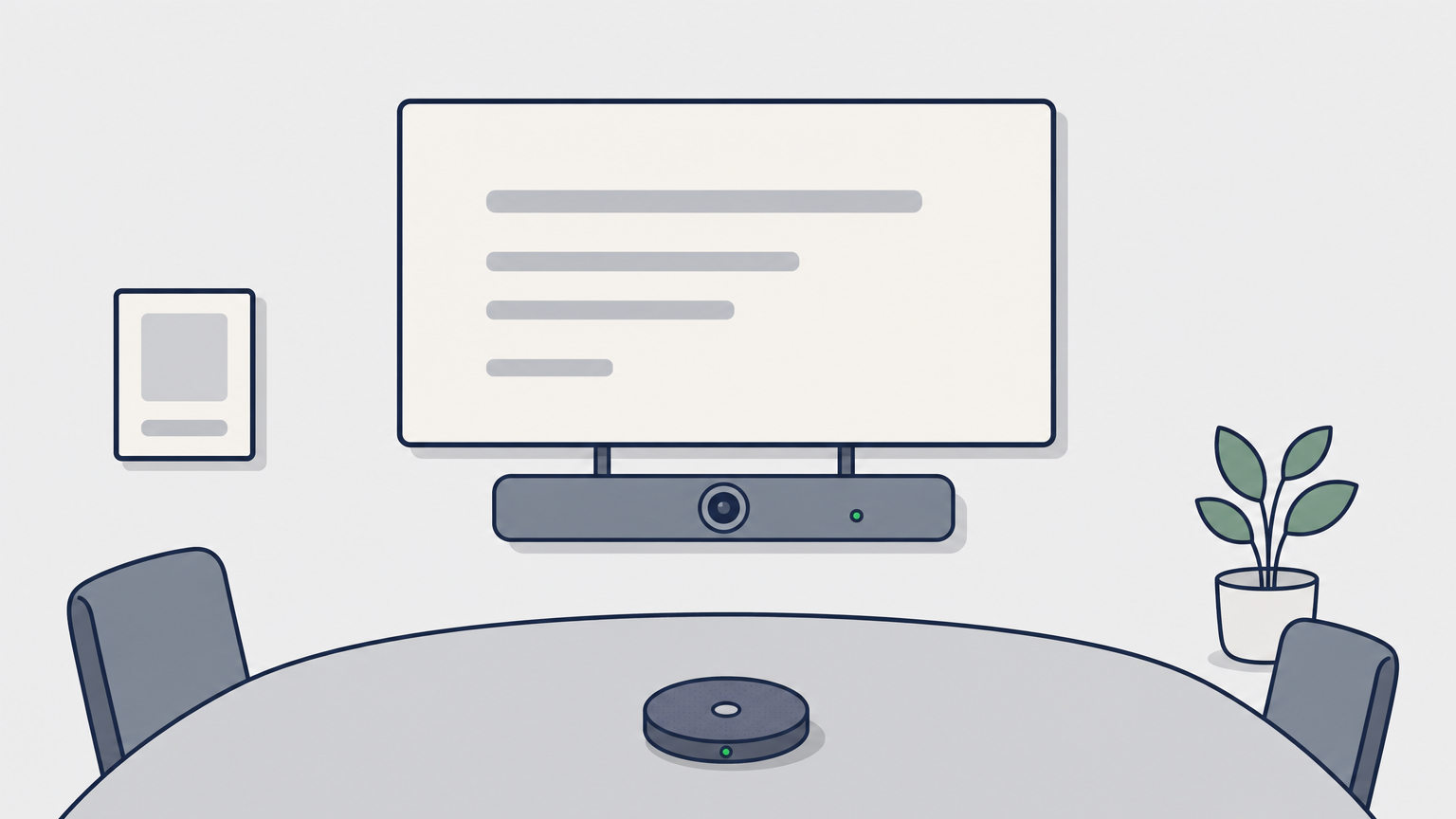
A video bar or auto-framing camera can make in-room participants easier for remote attendees to see. Choose coverage around the table layout and the kinds of meetings you hold.
What it fixes
A wide shot can leave faces too small to read. Group framing keeps participants in view, while speaker tracking selects or follows a speaker; confirm which features the model supports. Video bars combine camera, microphones, and speakers. Separate pan, tilt, and zoom (PTZ) cameras or multiple cameras may suit larger or more complex layouts.
If remote attendees cannot see who is talking, the room is not ready for hybrid meetings.
What to look for
Use these illustrative starting points, then validate camera field of view, microphone pickup distance, and supported peripherals. Seat counts are not manufacturer coverage ratings:
| Room size | Typical seats | Video setup |
|---|---|---|
| Huddle room | 2 to 6 | All-in-one video bar |
| Small room | 6 to 10 | Video bar with a supported expansion microphone if needed |
| Medium room | 10 to 16 | PTZ or multi-lens camera with table or ceiling microphones |
| Large room | 16 to 20+ | Consider multiple cameras and separately designed audio coverage |
Confirm the exact device and operating mode are supported for your meeting platform, such as Microsoft Teams Rooms, Zoom Rooms, or Google Meet. Position the camera near seated eye level where practical, and test the view from every seat.
Who it suits and what it costs
This suits hybrid teams and regular client calls. Two rooms with the same number of seats can need different equipment because their table lengths, seating angles, and camera distances differ. Test the proposed setup in a representative layout before committing.
Compare complete installed costs, including mounts, expansion microphones, compute hardware, licenses, and commissioning. A video bar can simplify a suitable room, but it is not automatically the least expensive option.
3. Better microphones and speakers
Better microphones and speakers are the upgrade remote attendees notice first. People forgive a soft picture long before they forgive audio they cannot understand.
What it fixes
Poor audio can mean echo, quiet voices at the far end of the table, or distracting keyboard and ventilation noise. Microphone coverage determines which seats are captured clearly. Acoustic echo cancellation helps prevent far-end audio from being sent back through the microphones; it does not replace treatment for a reverberant room.
In a hybrid meeting, audio quality decides whether the remote half of the meeting is a participant or an observer.
What to look for
Check the manufacturer’s stated coverage for each microphone against your actual table, and use this checklist:
- Table, ceiling array, or beamforming microphones that cover every seat, not just the head of the table
- Built-in or processor-based echo cancellation and noise reduction
- Speakers placed so that sound reaches every seat at an even level
- Acoustic panels or soft furnishings to cut reverberation, which is how long sound lingers in the room
- A supported audio signal path, with network or wireless performance checked where applicable
Who it suits and what it costs
This suits rooms with long tables, glass walls, or any complaint of "I can’t hear them." It also suits rooms where people keep leaning toward a speakerphone in the middle of the table.
A video bar may cover a small room. Larger spaces may need multiple microphones and digital signal processing, either built into the system or provided separately. Budget for acoustic treatment and tuning as needed, and test normal conversation from every seat.
4. A display matched to your content and room
A commercial flat panel, projection system, or dual-display layout should make both shared content and remote participants easy to see. Replace the existing display when it cannot meet those needs under normal room lighting.
What it fixes
A commercial flat panel can suit a bright meeting room, while a properly designed projection system can provide a larger image. Projector output, screen selection, ambient light, and glare all affect readability. Two displays can separate participants and content when the room platform supports that layout.
Test the actual content from the farthest seat under normal meeting lighting.
What to look for
Choose image size from viewing distance, the smallest details people must read, and the space the meeting layout leaves for content. A single viewing-distance rule cannot guarantee spreadsheet legibility. Compare these options with representative slides and documents:
| Option | Strength | Trade-off |
|---|---|---|
| Projector | Large image on a big wall | Requires suitable light output, screen, placement, and ambient-light control |
| Commercial flat panel | Can provide a clear image in a lit room | Check image size, glare, mounting, and access for installation |
| Interactive display | Touch and annotation with supported software | Confirm platform compatibility and whether teams need touch features |
Also check mounting height, so the bottom edge is visible to seated people.
Who it suits and what it costs
This suits rooms that still run an old projector, and teams that brainstorm or annotate documents together. Interactive displays pay off only if people use them, so ask who will draw on it before you buy one.
Compare the complete installation, including mounts, structural support, power, cabling, software, and maintenance. Do not pay for interactive features unless they fit the team’s workflow.
5. Wireless sharing and one-touch join
Wireless sharing and one-touch join can reduce setup steps. Confirm that the solution supports the laptops, guest devices, and meeting services people actually use.
What it fixes
A configured room system with calendar integration can present a join button for supported meetings. Wireless presentation can reduce adapter hunting, but guests may still need an app, network access, a code, or a sharing accessory. Test that process before rollout.
A room is properly upgraded when a guest can start a meeting without asking anyone for help.
What to look for
Use your meeting platform’s room system as the base, whether Microsoft Teams Rooms, Zoom Rooms, or Google Meet. Then check these points:
- Calendar integration, so the room’s booking drives the join button
- A controller with the meeting and camera controls supported by the selected system
- Wireless sharing from laptops and phones, with access controls for guests
- One wired input kept as a fallback, because wireless occasionally fails
- Clear labels and a one-page guide at the table
Who it suits and what it costs
This suits companies that host clients, run frequent short meetings, or see guests using the room. It also helps when many people bring their own devices.
Include hardware, licenses, configuration, and support in the quote. Involve IT in room accounts, calendar permissions, network access, and guest-sharing controls. Keep a supported wired input as a fallback.
6. Room booking panels and scheduling software
Room booking panels make availability visible at the door. Calendar integration and a clear check-in policy can help reduce unused reservations and booking confusion.
What it fixes
A panel at the door shows availability and upcoming reservations according to the organization’s privacy settings. No-show release depends on the platform and configuration. For example, Microsoft Teams panels can release a reservation when no one checks in within the configured period. Occupancy-sensor integration is a separate capability to verify.
Booking software makes the rooms you already have easier to use, which is often cheaper than building more.
What to look for
Choose a system that fits your calendar platform and your rooms. Look for these features:
- Calendar integration for all rooms, with real-time updates
- Room capacity and equipment shown for each space, so teams book the right room
- Supported check-in and no-show release, with the policy explained to users
- Usage reports, with a clear distinction between calendar bookings and measured occupancy
- Easy mounting at the door, with power or network as the model requires
Who it suits and what it costs
It suits any office with more than a few rooms, and especially offices where people complain they cannot find space. The usage reports help you decide which room to upgrade next, and which to turn into a huddle room.
Budget for panels, mounting, power or PoE, licenses, and account configuration. Keep room names, capacities, and equipment listings accurate so the booking information remains useful.
7. Room control and better lighting
Room control and better lighting tie the other six upgrades together. One touch can set the lights, shades, and display for the meeting you are about to have.
What it fixes
A room can have excellent gear and still look bad on camera. The usual culprit is lighting: windows behind the people, a single light on one side, or glare on the table. A control system stores scenes such as "presentation" or "video call," so shades close, lights adjust, and the display wakes up together. On camera, matte neutral walls such as soft gray or warm white behind the table look cleaner than bright white or busy patterns.
Check lighting and glare before assuming the camera needs replacing.
What to look for
Use even, diffused light on faces and control bright windows with suitable shades. Check the camera image at different times of day, then consider:
- Even lighting across the table, with no hot spots on the surface
- Dimmable lights with stored scenes for different meeting types
- Motorized shades, or at least blinds that can cut glare
- A compatible control platform if lights, shades, and AV need coordinated scenes
- Occupancy-based controls configured to avoid interrupting quiet or seated meetings
Who it suits and what it costs
This suits rooms with big windows, rooms used for both presentations and video calls, and companies that want the room to be easy for new users. If your room is small and simple, start with better lighting and skip full automation.
Costs depend on existing fixtures, electrical work, shading, and controls. A full control system also needs compatible interfaces, programming, and commissioning, so define the functions and support responsibilities before ordering.
Where to start with your room
Start with the most disruptive problem, then agree on how you will test the improvement. Check audio, camera coverage, content readability, and meeting startup on a real call. Use the results to prioritize later upgrades rather than replacing everything at once.
To discuss installation, cabling, or commissioning support, book a MegaTech for your next room upgrade. Share the equipment list, site conditions, scope, and target schedule so availability and responsibilities can be confirmed.
Mega Has The Staffing Solutions You Need For Your Next Pro AV Project.
Let MegaServices help you grow your business by providing you with the qualified personnel you need when you need them.
John Pierce III is the Director of IT at Mega Services, connecting the company’s people, processes, and technology. Drawing on experience in field installation, technician support, recruiting, and dispatching, he develops systems, automations, and reports that make work simpler and more efficient. John specializes in identifying inefficiencies and transforming complex processes into practical, user-friendly solutions.
