

The zoom room network requirements come down to five checks. Open outbound TCP 443 and UDP 3478, 3479, and 8801 through 8810 to Zoom. Budget 2 to 6 Mbps per room depending on screen count. Run wired gigabit Ethernet with PoE for controllers. Make sure proxy, DNS, and certificate traffic don’t break the connection. Test before go-live. The firewall check suits your security team. The bandwidth check suits whoever plans capacity. The wired and PoE check belongs to whoever owns the switches and cabling. The proxy check matters most if you run SSL inspection. The test plan suits whoever is on site at commissioning.
The problem is familiar. A room is installed, the hardware is certified, the license is active, and the screen sits on "connecting." Or the call joins but video freezes. Nine times out of ten the cause is the network, not the room. Requirements are scattered across firewall tables, vendor guides, and cabling specs, so something gets missed.
This article puts them in one list, in the order you should work through them. Mega Services places certified AV technicians on VTC installs and system commissioning across the United States and Canada, and a room that isn’t network-ready is a frequent reason a commissioning visit stalls. Each item below covers what to set up and what typically goes wrong.
1. Open the right firewall ports and protocols
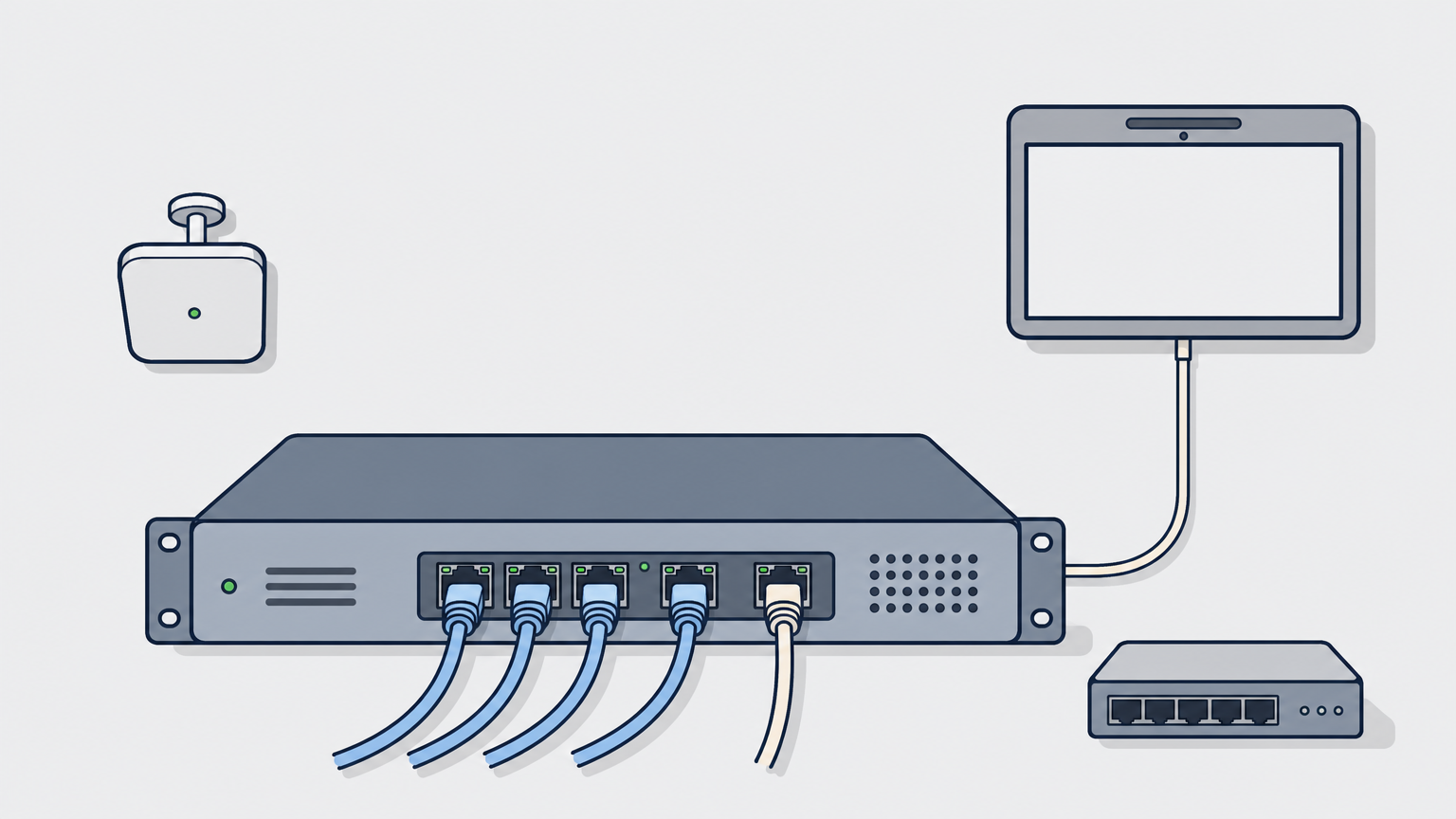
Zoom Rooms need outbound access on TCP 80, 443, 8801, and 8802 and UDP 443, 3478, 3479, and 8801 through 8810. These firewall ports are the core of any Zoom Room network requirements checklist. They are also the item most likely to break a deployment on day one.
What to set up
Apply these rules to outbound traffic. Zoom answers on the port the client opened, so your firewall must allow the return connections. You do not need to open inbound access from the public internet.
| Protocol | Ports | Used for | Destination |
|---|---|---|---|
| TCP | 80, 443 | Sign-in, web, configuration | *.zoom.us, *.zoom.com |
| UDP | 443 | Web traffic over QUIC | *.zoom.us, *.zoom.com |
| TCP | 443, 8801, 8802 | Meeting signaling and fallback media | Zoom Meetings IP ranges |
| UDP | 3478, 3479, 8801-8810 | Real-time audio, video, content | Zoom Meetings IP ranges |
Zoom publishes its current IP ranges as text files and announces changes on its status page, so subscribe to those updates. The Zoom firewall and proxy article is the source of truth for the ranges.
Open UDP, not just TCP 443, or your rooms will connect but perform badly.
What goes wrong
The classic mistake is opening only TCP 443. Zoom prefers UDP for media and falls back to TCP when UDP is blocked, so calls still connect but with higher latency and more frozen video. Check that UDP 3478 through 8810 really passes end to end.
Another trap is hard-coding IP addresses and never revisiting them. If a room worked for months and then fails, check for a range update first. Also, Zoom Phone on room hardware has its own port list, including TCP 5091 and UDP 20000 through 64000, so don’t assume the Meetings rules cover it.
2. Size bandwidth for the number of screens
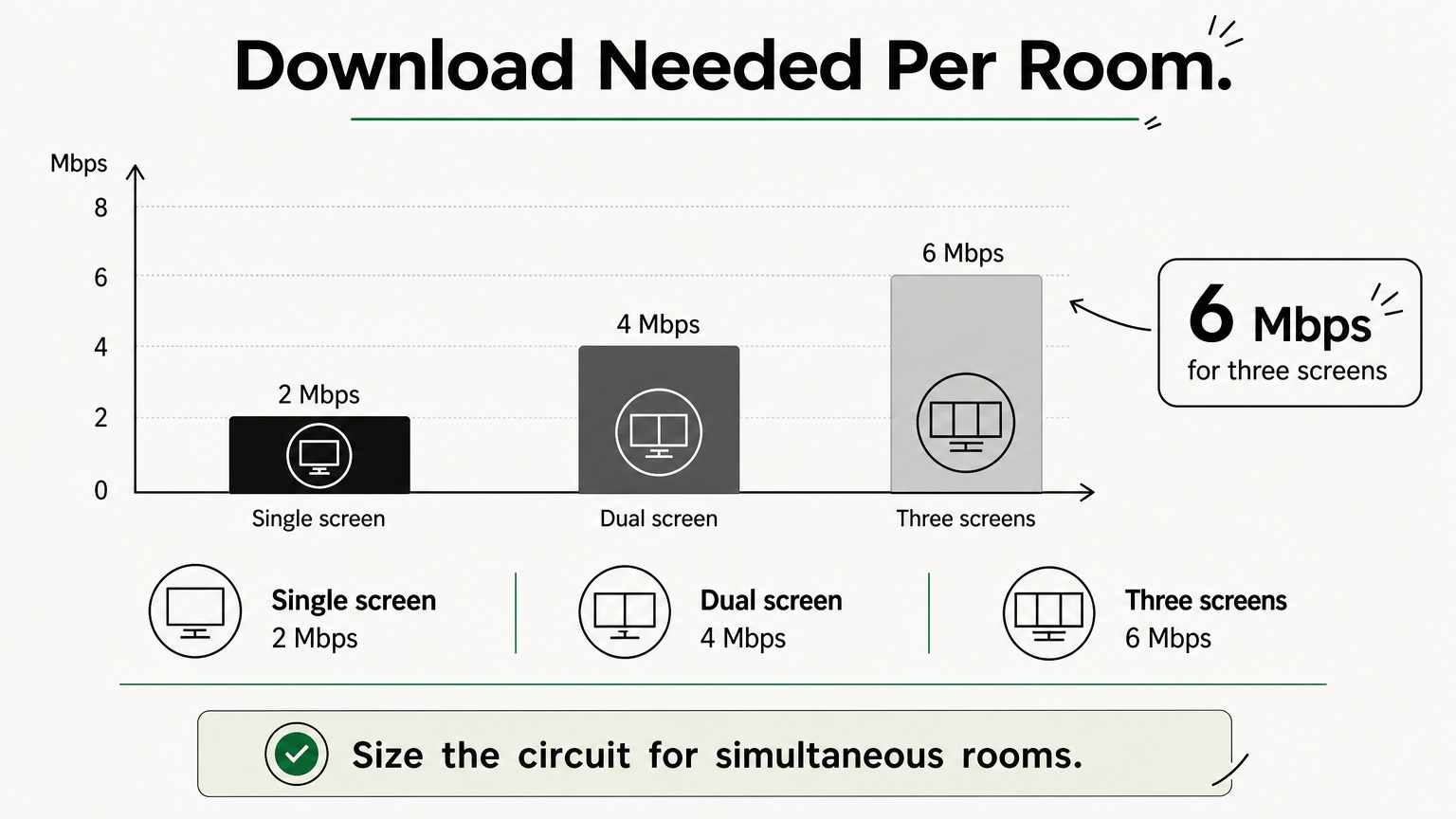
Plan on 2 Mbps up and 2 Mbps down for a single-screen room, and add about 2 Mbps of download for each extra screen. Dual-screen rooms need roughly 2 Mbps up and 4 Mbps down. These planning numbers are what matter for Zoom Room network requirements on the capacity side.
What to set up
Use the table as a per-room floor, then add headroom for content sharing and gallery view.
| Room layout | Upload | Download |
|---|---|---|
| Single screen | 2 Mbps | 2 Mbps |
| Dual screen | 2 Mbps | 4 Mbps |
| Three screens | 2 Mbps | 6 Mbps |
The real question is how many rooms share the circuit. Twenty dual-screen rooms in one building can pull 80 Mbps down and 40 Mbps up if they meet at once. Upload is usually the bottleneck on asymmetric business internet.
Size the circuit for simultaneous rooms, not for one room in a quiet test.
What goes wrong
People often ask whether 100 Mbps is enough for Zoom. For one room, yes, by a wide margin. For a floor of rooms plus laptops, video, and cloud backups on the same link, it can run out. A 500 Mbps link has plenty of capacity too, so look at contention and upload instead of the headline number.
If the link is shared with general traffic, prioritize real-time traffic with QoS on your switches and router. Also confirm the speed you pay for is the speed you get at the room’s wall port, not at the ISP handoff.
3. Run a wired, PoE-powered network
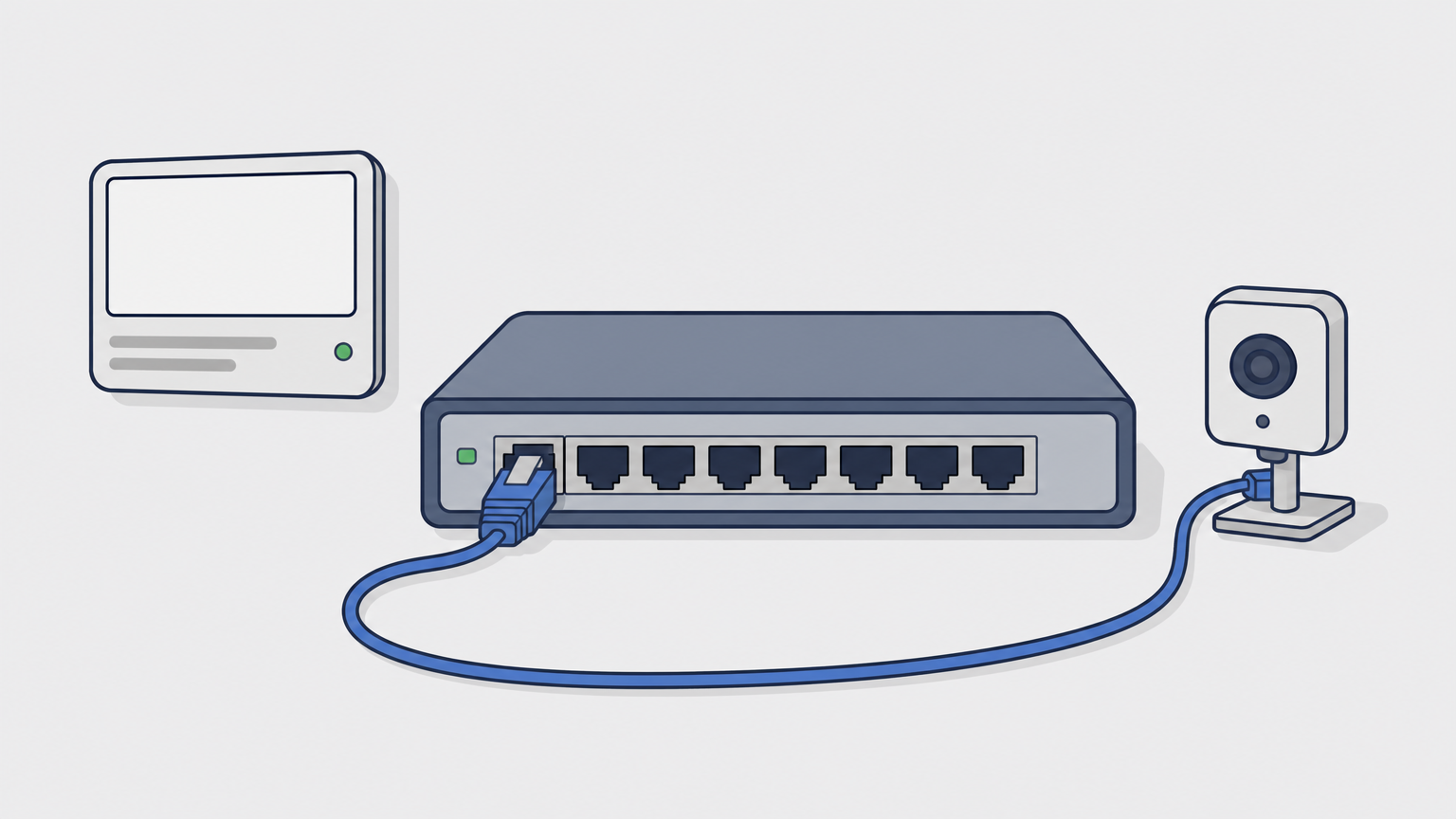
Zoom Room hardware should sit on wired gigabit Ethernet, with PoE powering the controller and scheduling displays. Wi-Fi is a last resort. This is the part of the Zoom Room network requirements that a switch and cabling owner controls.
What to set up
Run a dedicated cable to each device and confirm the switch can power it. Treat this as a short pre-install checklist:
- Gigabit ports for the room computer, plus a second gigabit run where the vendor requires one. Crestron’s Flex guide asks for two gigabit LAN ports on the same VLAN.
- DHCP available on that VLAN, ideally with a reservation per device.
- A PoE budget that covers every powered device, using the wattage on each hardware spec sheet.
- Cable runs under 328 feet (100 meters) for copper Ethernet.
- Outbound internet access for every device, with inbound access from the public internet restricted.
A room is only as reliable as its weakest cable and its tightest PoE budget.
What goes wrong
Switches advertise a PoE budget across all ports, not per port. Add up the draw of every powered device on the switch, because an overloaded budget drops devices at random times. Check the PoE class each device needs against what the port delivers.
Wi-Fi causes the other common failures. Roaming, interference, and shared airtime show up as choppy audio and video that no firewall change fixes. If a wired drop isn’t possible, document the exception and test it harder than any other room.
4. Allow proxy, DNS, and certificate traffic
Zoom supports HTTPS proxy servers over port 443 and recommends allowing zoom.us and *.zoom.us through proxy and SSL inspection. The proxy does not apply to Zoom Phone. For Zoom Room network requirements, this is where otherwise correct firewalls still fail.
What to set up
Add these entries to your allowlist, and exempt room devices from SSL inspection where you can:
*.zoom.us
*.zoom.com
*.zoomapp.cloud
zdmapi.zoom.us
ocsp.digicert.com
crl3.digicert.com
crl4.digicert.com
The certificate hosts use HTTP on port 80, and Zoom lists more certificate authority hosts in its documentation, so work from the full list. The zdmapi.zoom.us address matters if you manage rooms with Zoom Device Management. Zoom’s CDN, which delivers recordings and firmware, also uses TCP and UDP 443.
Allow the certificate and management hosts too, or sign-in fails with no obvious cause.
What goes wrong
Zoom may prompt for proxy credentials, and an unattended room has nobody to type them. Exempt room devices from proxy authentication. SSL inspection that re-signs Zoom’s certificates can break the secure connection, so bypass inspection for Zoom domains.
Make sure DNS resolves Zoom hostnames from the room VLAN. Also keep device clocks synced, since a wrong system time makes certificate checks fail.
5. Test and troubleshoot before go-live
Test every room from its own network port before the client sees it. A 30-minute test call with all screens and content sharing exposes nearly every Zoom Room network requirements gap. It costs far less than a failed executive meeting.
What to set up
Run this sequence on the room device itself, not your laptop:
- Open a browser and load https://zoom.us to prove basic access.
- Run the Zoom Network Connectivity Tool to test the connection to Zoom services.
- Start a meeting and join from an outside device.
- Share content, switch layouts, and use every screen for at least 30 minutes.
- Record the VLAN, switch port, and IP settings for the handover file.
Test from the room’s own wall port, because that is the only test that counts.
What goes wrong
Use symptoms to find the cause:
| Symptom | Likely cause | First fix |
|---|---|---|
| "Network error, please try again" | Firewall, proxy, or web gateway | Recheck TCP 443 and allowlist |
| Joins, but video freezes | UDP blocked or throttled | Open UDP 3478-8810 |
| Room shows offline | DNS, proxy auth, or certificate hosts | Exempt device, allow port 80 hosts |
| Choppy audio at busy hours | Saturated uplink | Add QoS or capacity |
If you are asking why you can’t connect to a Zoom Room at all, work down this table from the top. When it comes to a site with dozens of rooms, script the checks so each room gets the same test.
Get the network right first
Zoom Rooms work reliably when five things line up: open ports on TCP and UDP, bandwidth sized per screen, wired PoE cabling, clean proxy and certificate paths, and a real test on the room’s own port. Skip one and you end up troubleshooting on the day the room is supposed to go live.
Once the network is ready, the install, cabling, and commissioning still need the right hands. If you need certified technicians for VTC setup or room commissioning, book a MegaTech™ for your Zoom Room install and get a vetted technician on site, with no contracts or minimums.
Mega Has The Staffing Solutions You Need For Your Next Pro AV Project.
Let MegaServices help you grow your business by providing you with the qualified personnel you need when you need them.
